


Filter Citations, Visibility, Sentiment, and Suggested Questions From One Menu
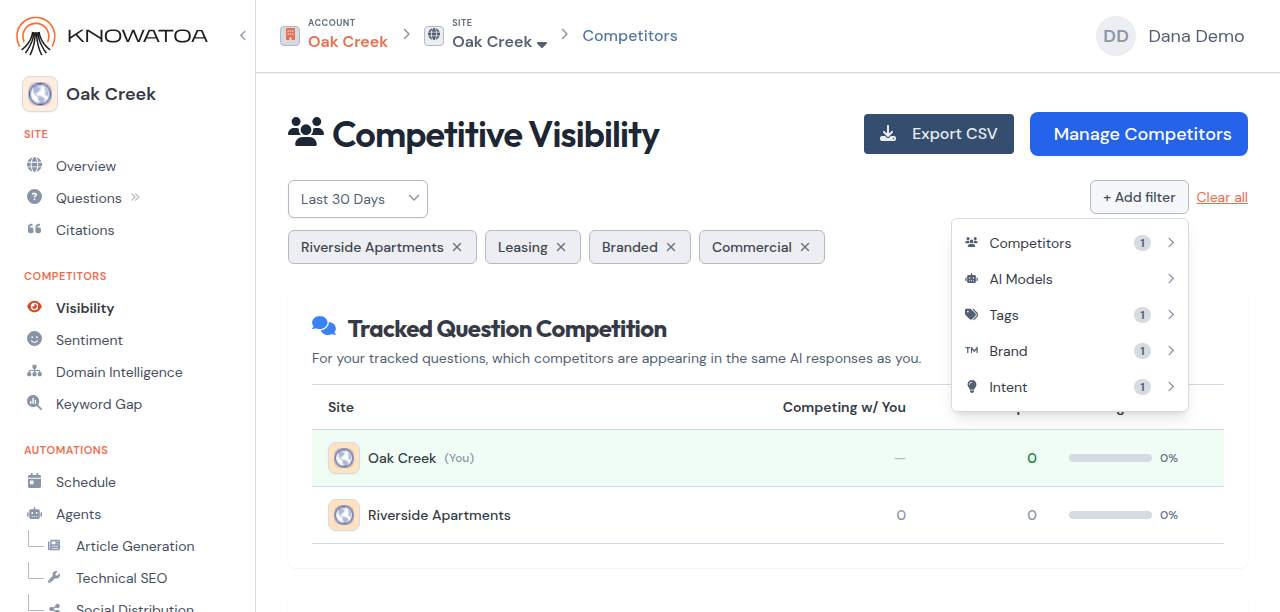
The + Add filter menu from your Overview and Questions page now sits on four more reports: Citations, Competitive Visibility, Sentiment, and Suggested Questions.
Click + Add filter, pick a category, then a value. Each filter you apply shows as a chip. Click a chip to remove that one filter. Clear all removes every filter.
You get some or all of these categories, depending on the page:
- Competitors
- AI Models
- Tags
- Brand
- Intent
Mentions stays on the Overview and Questions. It is not on these four reports.
The filters live in the link
Filters are part of the page URL. Bookmark the page, or share the link, and the same view opens. Clear all keeps the date range on reports that have one.
A date range on citations, Competitive Visibility, and Sentiment
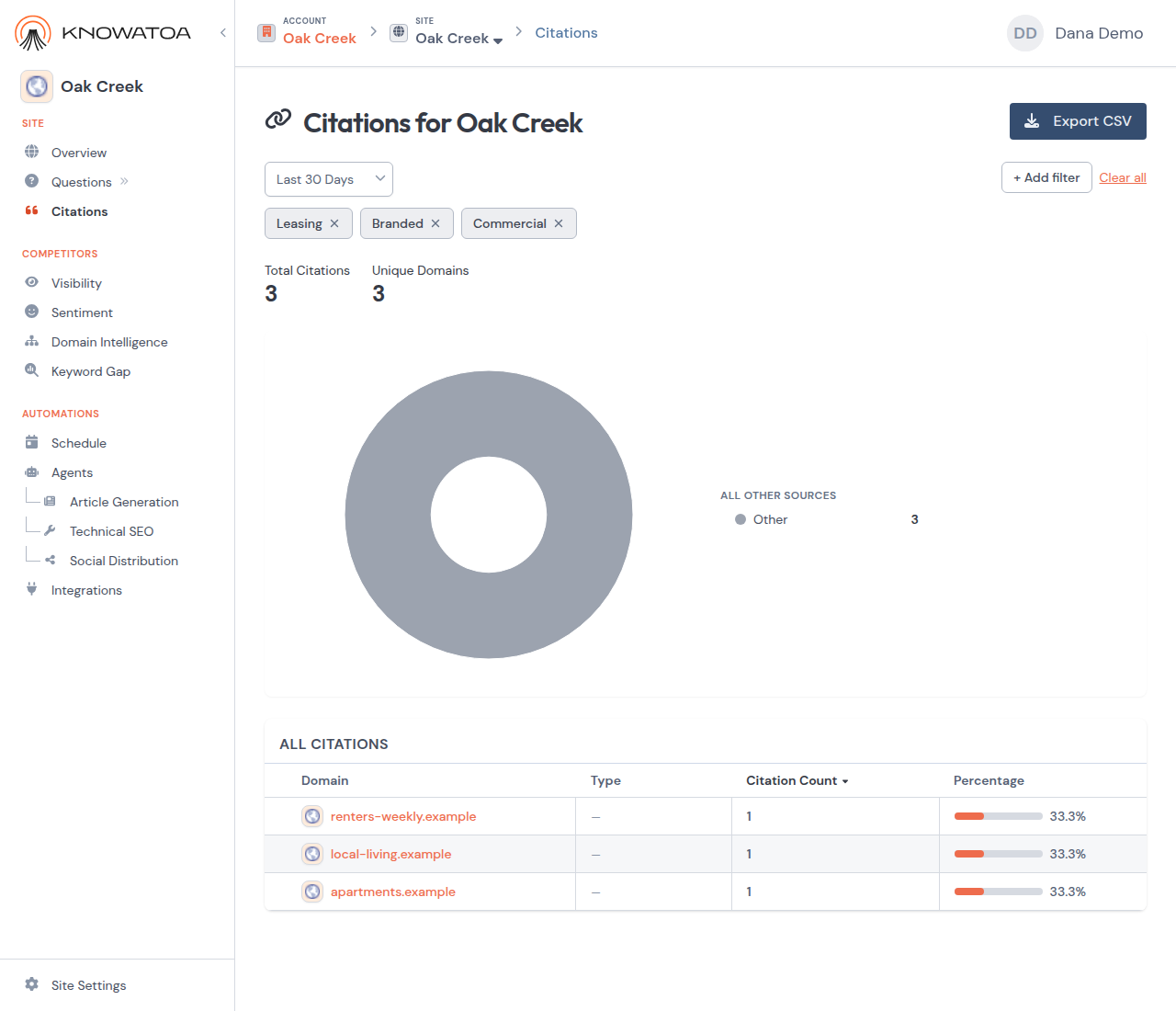
The citations page, Competitive Visibility, and Sentiment keep a date dropdown next to + Add filter.
Competitive Visibility and Sentiment open on the range you last picked on Overview or the citations page. If you have not picked a range there, they open on Last 30 Days. The citations page also opens on the range you last picked on Overview or the citations page, or on Last 7 Days if you have not picked one.
All Time is in the dropdown on the citations page and on Competitive Visibility. It is not on Sentiment. A saved All Time range is not used on Competitive Visibility unless you choose All Time again on that page. On Sentiment, a saved All Time range falls back to Last 30 Days.
On Competitive Visibility, two sections follow the date range only: You vs Competitors and Content Opportunities. Both say Not affected by filters except date.
Sort citations by clicking a column header
The old sort box on the citations page is gone. In the main table, click Domain, Type, Citation Count, or Percentage to sort. Click the same header again to reverse the order. The default is still the most-cited domains first.
The CSV you export from citations includes only the rows that match your filters and date range. Rows follow the column you clicked. The default is still the most-cited domains first. The Refresh Date column is the site’s latest refresh, even if you filtered the date range.
Suggested Questions uses the same menu, without a date range or AI Models
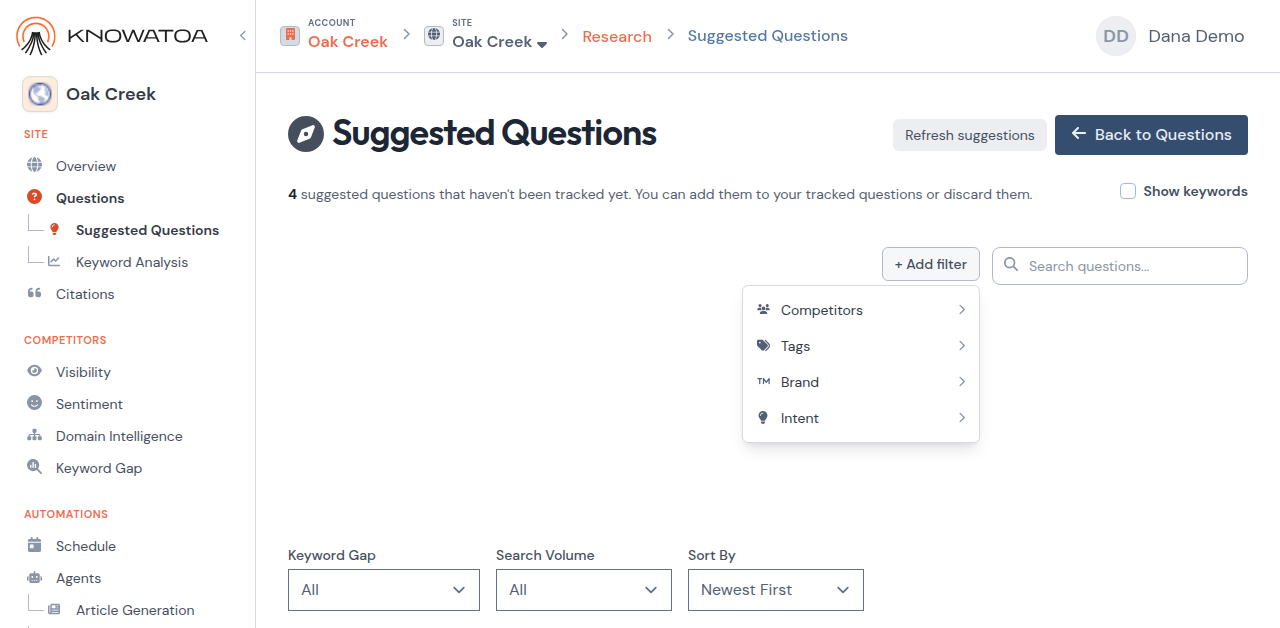
On the Research page, under Suggested Questions, the old Site, Tag, Brand, and Intent dropdowns are gone. Click + Add filter next to the search box.
Competitors, Tags, Brand, and Intent all change which suggested questions are listed. Pick two tags and you see suggestions with either tag. There is no date range on this page, and no AI Models filter.
Keyword Gap, Search Volume, and Sort By are still their own dropdowns for now. Those will move into the same toolbar in a coming update.
An old Suggested Questions filter link redirects once to the new address and keeps your search.
See How to Filter the Overview, How to Filter Questions, How to Filter Citations, How to Filter Visibility and Sentiment, and How to Filter Suggested Questions for the details.