

How to Filter Questions
The Questions page lists the questions you track. You can narrow that list, and change which columns and stats you see, from one menu.
Add a filter
Click + Add filter, next to the search box. Pick a category, then a value. There is no date range on this page.
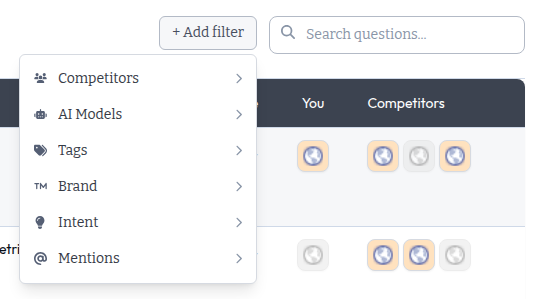
| Category | What it does | How you pick |
|---|---|---|
| Competitors | Changes the Competitors column and competitor mention stats you see. It does not change which questions are listed. Your You column always stays. | Check one or more, then Apply |
| AI Models | Changes which models’ answers count toward the mention indicators, sentiment, and the Brand Mentions number at the top. It does not change which questions are listed or which columns show. | Check one or more, then Apply |
| Tags | Shows only questions with the tags you pick | Check one or more, then Apply |
| Brand | Branded or Non-Branded questions | One click |
| Intent | Questions with the search intents you pick | Check one or more, then Apply |
| Mentions | Only Us Mentioned, Only Competitors Mentioned, or Neither Mentioned. Mentions uses the latest refresh. You can combine it with Brand. | One click |
A few things to know:
- Brand and Mentions always show. Competitors shows when your site has competitors. Tags shows once the site has at least one tag. Intent shows when at least one question has an intent.
- Apply stays gray until you change what’s checked.
- If you check two tags, you see questions with either tag.
- Tags always has a search box. Competitors gets one when you track 8 or more.
- A number next to a category shows how many of its values are applied.
- To swap a Brand or Mentions choice, click a different option.
The search box, with the placeholder Search questions…, can be used with the other filters. A search keeps the filters you already applied.
Remove filters
Each applied filter shows as a chip. Click a chip to remove it. Click Clear all to remove every filter. Clear all keeps your search.
What stays put
The More Recent Conversations list on this page is not filtered. Research keeps its own filters.
An old filter link, or a filter you had saved, redirects once to the new address and keeps your search.
Save or share a filtered view
Filters are part of the page URL. Bookmark the page to come back to the same view.
The Overview uses the same + Add filter menu, with a date range and a chart. See How to Filter the Overview. To create and apply tags, see How to Use Tags to Organize Questions.